
When working with scans, screenshots, before and after, or multiple photos, there is a need to merge JPG images. As in all those cases, the integrity of the original image is as vital as the actual process of merging itself. But some of the programs compress the original JPG file, and the resulting image will appear blurry and distorted.
There are many different ways to merge JPG images and not to lose the quality of the image. These methods include an online JPG merger, MS Paint, Photoshop, or Canva. Each one works differently, but the essence is the same – do not distort or compress your image unnecessarily.
In this article, we will talk about factors that can influence the quality of the image and about different ways to merge JPG images and not lose their quality.
Why Image Quality Matters When Merging JPG Files
Combining JPG images, therefore, entails merging images in a way that will not lead to degradation in image quality. Low quality can result in an image being unreadable, losing important details and generally deteriorating the look of a picture, scanned document, screenshot or any other design.
What is interesting about the process is that combining images does not automatically lower their quality. Most often, low quality results from unnecessary compression, resizing or poor settings when exporting the image. With proper technique, it is possible to merge JPG images without lowering their quality.
Methods to Merge JPG Images without Losing Quality
There are many options when it comes to combining JPG images without reducing their quality. There are some that are easy and can be done using browsers, and there are some that take longer but have more editing capabilities. In this article, I will show you four simple ways of combining your JPG images.
Method 1: Merge images with an Online Merge JPG Tool
Using an online merge JPG tool is the simplest and easiest way to join multiple JPG images without compromising their original quality. This process does not require any software installation or sign-up. The good thing about the JPG merger is that it works seamlessly on all devices, including desktop, tablet, and mobile phones. Simply follow the steps below to combine multiple images quickly:
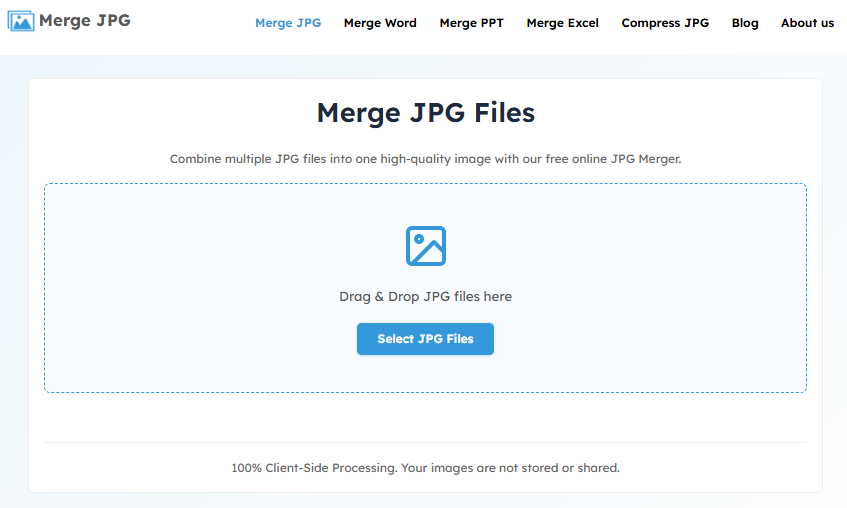
- Upload Your JPG Images: Use the “Select JPG Files” option, or even drag and drop your desired JPG files..
- Choose a Layout: Choose either side-by-side placement for the images, or vertical positioning of the images.
- Merge the Images: Click the “Merge JPG” button to combine all selected images into a single JPG file.
- Download the Final Image: See the preview, and then press “Download JPG” to download it. You may also download the combined images in PNG, WebP, and PDF formats.
Method 2: Merge JPG Images with Microsoft Paint
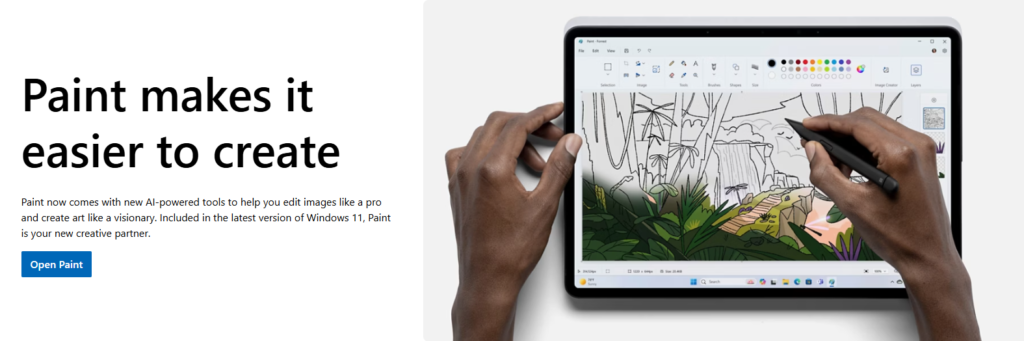
Microsoft Paint It is an image editing program available in Windows. If you just want to join a few images in JPG format, it is the easiest method that does not require any external software installation. It lacks some advanced editing tools but allows manual placing of several images in one frame and saving them into one JPG file. Steps for merging JPG images using Microsoft Paint:
- Open Microsoft Paint: Launch Paint from the Windows Start menu.
- Create a Larger Canvas: Open one JPG image, then increase the canvas size to make room for the remaining images.
- Insert Additional Images: Go to Paste > Paste from and select the other JPG images you want to combine.
- Arrange the Images: Drag each image into the desired position, either side by side or one below another.
- Save the Merged Image: Click File > Save As > JPEG Picture, choose a location, and save the combined image as a new JPG file.
Method 3: Merge JPG Images in Adobe Photoshop
Adobe Photoshop Photoshop is a good option if you wish to have better control over your final result. This software allows you to put together several JPG images on one workspace, arrange them properly and save the merged file in a high-quality format. Even though this is a more complicated process, it is perfect for professionals. The way to merge JPG images using Photoshop:
- Open Adobe Photoshop: Launch Photoshop on your computer.
- Create a New Document: Go to File > New and create a canvas large enough to fit all the JPG images you want to merge.
- Import the JPG Images: Select File > Place Embedded (or drag and drop your JPG files into the canvas). Each image will be added as a separate layer.
- Arrange the Images: Use the Move Tool (V) to position the images side by side, vertically, or in any layout you prefer.
- Flatten the Layers: Once you’re happy with the layout, go to Layer > Flatten Image to combine all layers into a single image.
- Export as a JPG: Go to File > Save As (or File > Save a Copy in newer versions), choose JPEG, select a high-quality setting, and save the merged image.
Method 4: Merge JPG Images with Canva

Canva is an easy-to-use design tool that allows you to conveniently join several JPG images into one document. It functions directly from your browser and provides basic drag-and-drop editing, which makes it a great choice for designing collages, presentations, social media graphics, or other types of visual content. How to merge JPG images using Canva:
- Open Canva: Sign in to your Canva account and create a new design with a custom size or choose a suitable template.
- Upload Your JPG Images: Select “Uploads” from the left-hand side menu and upload your JPG images to be used for collage creation.
- Add Images to the Canvas: Drag each uploaded image onto the canvas.
- Arrange the Images: Arrange the images as you prefer, for instance, placing them side by side or placing one above the other..
- Download the Final Image: Click Share > Download, choose JPG as the file format, and download the merged image to your device.
Which Method Is Best for Merging JPG Images?
Which approach to take is highly dependent on your preferences. An online JPG merger is the simplest option if you require fast and easy solutions. Microsoft Paint is perfect if you want something quick but basic for editing off-line; while Adobe Photoshop can be used for more complicated editing.
| Feature | Online JPG Merger | Microsoft Paint | Adobe Photoshop | Canva |
| No Software Installation | ✅ | ❌ | ❌ | ✅ |
| Easy for Beginners | ✅ | ✅ | ❌ | ✅ |
| Works on Mobile | ✅ | ❌ | ⚠️ Limited | ✅ |
| Works on Desktop | ✅ | ✅ | ✅ | ✅ |
| High-Quality Output | ✅ | ✅ | ✅ | ✅ |
| Free to Use | ✅ | ✅ | ❌ | ✅* |
| Advanced Editing Features | ❌ | ❌ | ✅ | ⚠️ Limited |
| No Account Required | ✅ | ✅ | ✅ | ❌ |
| Best for Quick JPG Merging | ✅ | ❌ | ❌ | ✅ |
Final Thoughts
It turns out that merging JPG images in high quality is easier than you might think if you know how to do it. It does not matter whether you are going to use Merge JPG Online, MS Paint, Photoshop by Adobe, or Canva; the main thing here is to keep the original resolution and not to compress the image. Everything else depends on your preferences and the tools available.
Using any of the techniques described above, you will be able to merge your JPGs, making sure that the resulting image remains high-quality and clear. It is enough to take just a little more time and effort to make your JPG look great.
AUTHOR BIO
Ali-ul-Haq is a content writer who covers technology, useful tips and tricks, and online tools. He enjoys breaking down complex topics into simple, practical guides that readers can easily follow. His writing focuses on helpful information, everyday tech solutions, and tools that make digital tasks faster and easier.