
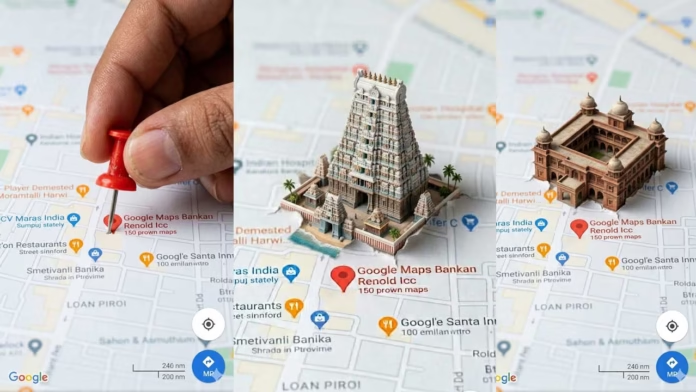
Introduction about Creating AI Map Animation Videos Using Prompts in Google Flow
When you stop manually editing timelines and begin guiding visuals through language, the creative process changes noticeably. In Google’s Flow tool, map animation becomes less about technical control and more about giving clear, precise instructions. Rather than building each scene frame by frame, you describe the movement, location, geography, and visual style in a way the system can understand, allowing your prompts to transform into animated visual journeys.
Accessing Google Flow and Choosing the Right Mode
To get started, open Google Flow and choose the video generation mode. Although Flow may offer different creation options, map animation requires a mode that produces motion-based output rather than a static image. After entering the workspace, you will find the prompt input area along with options for style, duration, and other settings. This is where the process begins. Choosing the right mode is important because it tells the system that your final result should be an animated sequence, not just a single visual frame.
Defining the Map Base Clearly
Before adding animation, first define the type of map you want to create. Flow does not always understand context on its own, so the base map layer needs to be clearly described. A strong opening phrase such as “satellite map of South India” or “dark-themed navigation map of Chennai city” helps establish the visual direction from the start. Based on testing, vague or incomplete base descriptions often lead to mixed, inaccurate, or unrealistic results.
Structuring the Prompt for Animation
The most effective way to get strong results in Google Flow is to use a structured prompt format. Begin by describing the scene, then add the camera movement, the main action, the visual style, and the pacing. For example, instead of writing a short or unclear prompt, you could use something like: “Satellite map of Tamil Nadu. Gradually zoom into Chennai. A glowing route appears from Chennai to Coimbatore along the highways. Use soft neon blue lines with smooth cinematic motion.” A prompt like this gives Flow clearer direction and usually produces more accurate, polished, and visually consistent results.
Controlling Camera Movement and Perspective
Camera direction has a major impact on how the final animation feels. Without clear camera instructions, Flow may create sudden, rough, or unnatural movement. Adding directions such as “top-down view,” “smooth pan,” or “gradual zoom” helps keep the animation stable and visually controlled. In practice, combining the camera angle with movement speed, such as “gradual top-down zoom,” usually creates a more natural result than using broad or generic terms alone.
Generating Route Animations with Precision
Route animation is the main element of map-based videos, and Flow works best when the starting point, destination, and route behavior are clearly explained. Instead of simply asking it to create a route, describe exactly how the route should appear and where it should travel. For example, a prompt like “draw a glowing route from Madurai to Bangalore following real road paths” gives the system better direction and improves accuracy. Adding phrases such as “real road paths” helps reduce random straight-line connections and makes the final animation look more realistic and believable.
Fixing Output Issues Through Prompt Refinement
AI-generated outputs often need some refinement before they look polished. Common problems include inaccurate routes, motion that feels too fast, or visuals that appear too crowded. These issues can often be fixed directly through the prompt without using separate editing tools. Adding clear instructions such as “accurate geographic mapping,” “slow cinematic pacing,” or “minimal clean interface” helps guide Flow more effectively and improve the final result during the generation stage itself.
Using Iteration to Improve Results
Instead of rewriting the entire prompt, adjust one element at a time. This makes it easier to identify which change improves or affects the output. For example, modifying only the route color or slowing down the zoom speed can make a noticeable difference in the final animation. Based on testing, this step-by-step approach produces better results more quickly than rewriting the full prompt from scratch each time.
Enhancing Visual Style for Better Clarity
Style instructions are not only about appearance; they also make the animation easier to understand. Phrases like “dark mode map with glowing roads” or “minimal UI design” help reduce visual clutter and make the route stand out more clearly. Flow responds well to clean and specific visual directions, especially when the animation is being created for social media content.
Exporting and Polishing the Video
Once the animation is generated, export it using the highest quality settings available. After that, you can make small improvements outside the tool, such as adding background music, adjusting the speed slightly, or trimming the clip for better flow. The AI creates the main animation, but these minor finishing touches help make the final video feel more polished, complete, and ready to publish.
Real Usage from Testing
In one practical test, I created a travel animation showing a route from Chennai to Ooty. By using a structured prompt in Google Flow, I was able to generate a smooth zoom-in map animation with a glowing route path. After adding simple text overlays, the video performed better than static content because it explained the entire journey visually within just a few seconds.
Common Mistakes to Avoid
The biggest mistake is treating prompts like simple search queries. A vague phrase such as “India map animation” is unlikely to produce a useful result. Flow needs clear, step-by-step instructions that explain the scene, movement, route, style, and pacing. When you think of your prompt as directions you would give to a video editor, the output becomes much more accurate, controlled, and visually effective.
Why This Method Works Efficiently
The real strength of Google Flow is that it reduces technical effort while still allowing creative control. Animations that once required advanced tools like Adobe After Effects can now be created through clear and structured prompts. However, the system does not replace creativity. It relies on how well you describe the movement, visual style, pacing, and sequence to generate an animation that feels meaningful, polished, and visually engaging.
Related post : Deleted Message Monitoring App


